How to Issue an e-Invoice on MyInvois Portal - Step by Step Guide
A
Ashraf Ibn Zelt
26 February 2026
14 min read
#e-invoice#myinvois#lhdn#malaysian-tax#compliance
A comprehensive step-by-step guide on how to issue e-Invoice documents on the LHDN MyInvois Portal. Covers document creation, buyer/supplier details, line items, tax information, and digital signing for Malaysian businesses.
Issue e-Invoice Document
This section provides a step-by-step process for taxpayers to issue invoice documents on the MyInvois Portal.
Step By Step Guide
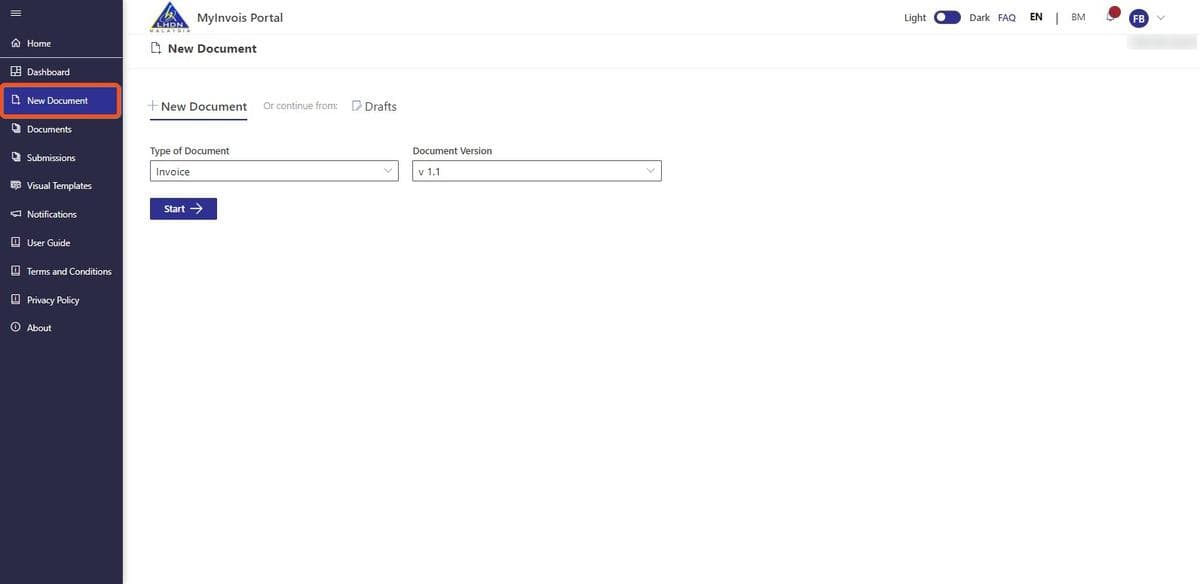
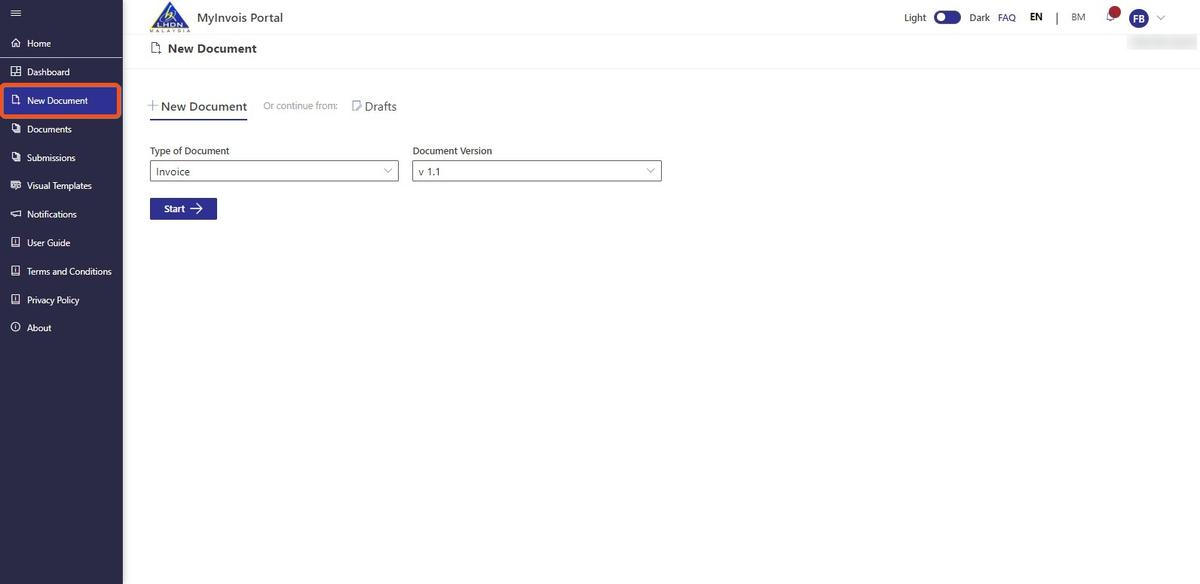
Step 1: Access New Document
- Click on the New Document button on the left-side navigation panel.
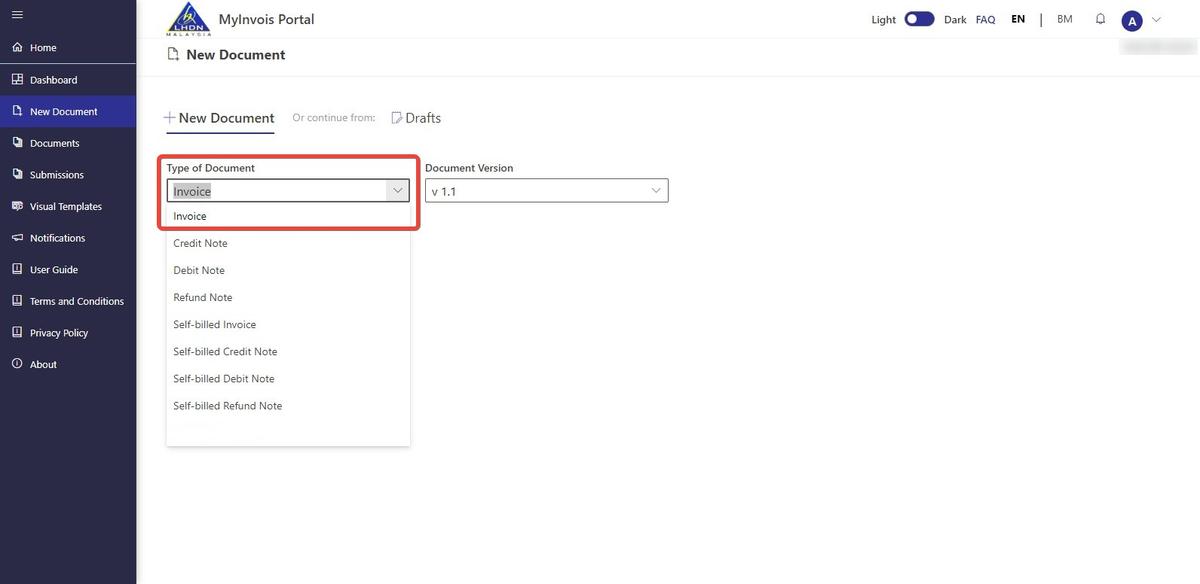
Step 2: Select Document Type
- Select Invoice from the dropdown.
Step 3: Select Document Version
- Choose a document version from the dropdown menu. The most recent version will be selected by default (Note: Document v1.1 includes Digital Signature validation)
- Click on Start

Step 4: Add Basic Information
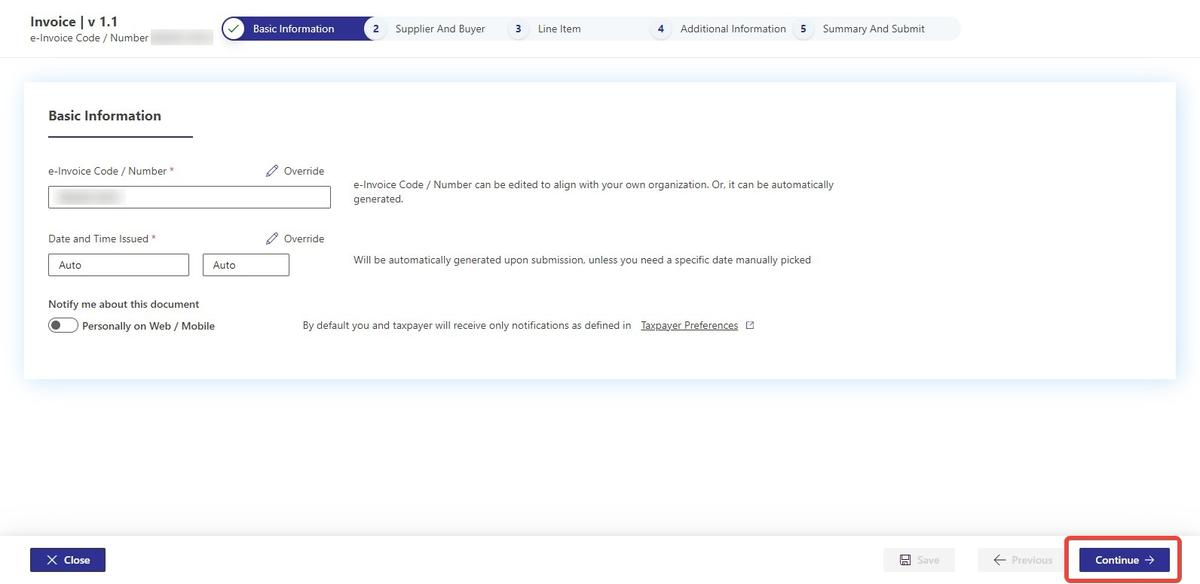
- The e-Invoice Code/Number and Date and Time Issued are automatically generated by the system. Users can override these values if necessary, but it is highly recommended not to modify them.
- Click on Continue.
Step 5: Add Buyer and Supplier Details
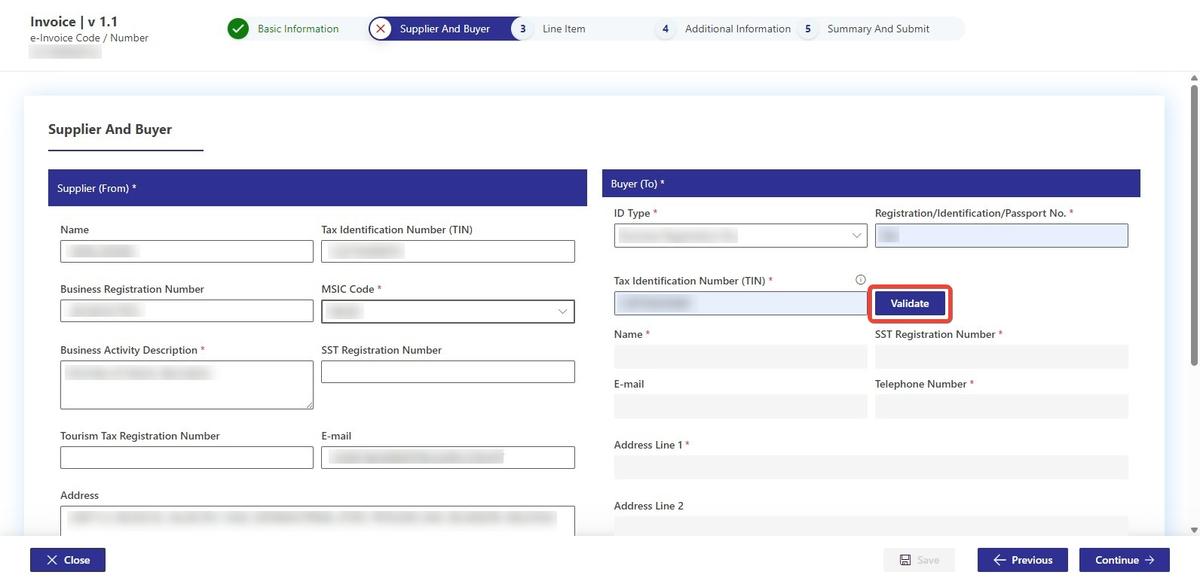
- In the supplier section, the fields for Name, Tax Identification Number (TIN), SST Registration Number, Tourism Tax Registration Number, Email, Branch Address, and Phone Number are automatically filled in. Users are required to select an MSIC code and provide a description of their business activity.
- In the Buyer section, users are required to select an ID type, enter an ID number and TIN. Then click on Validate button.
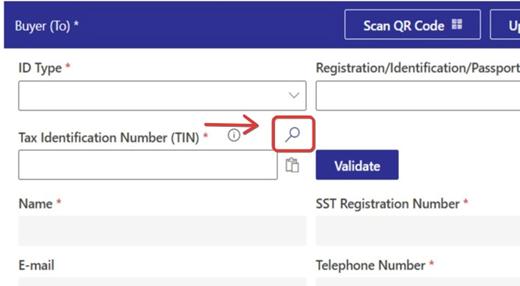
- Users may click the Search button to retrieve the Tax Identification Number (TIN).
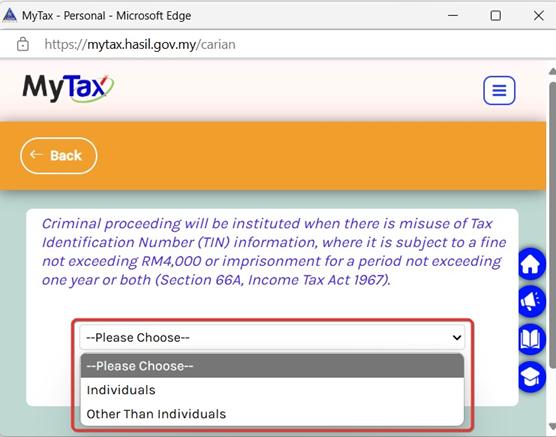
- The system will automatically display a pop-up window to the MyTax Portal.
- Click on the dropdown menu to select either Individuals or Other Than Individuals.
- Selecting Individuals allow users to search TIN of a taxpayer that is a single person.
- Selecting Other Than Individuals, allow users to search for the TIN of a taxpayer when the taxpayer is an entity or organisation, such as those listed in the category dropdown menu (e.g., Company, Limited Liability Partnership, Trust Body, Co-operative Society, and others).
- For Individuals, users can search for the taxpayer’s TIN by entering their Identification No. or Passport No.
- Select the ID type of the taxpayer.
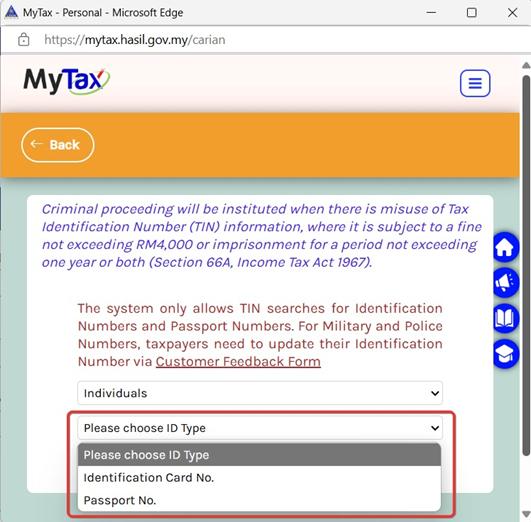
- After selecting the ID type, users can enter the information based on ID type selected.
- Click on the Search button.
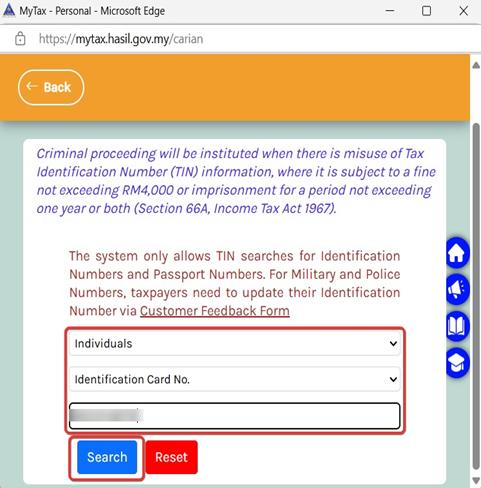
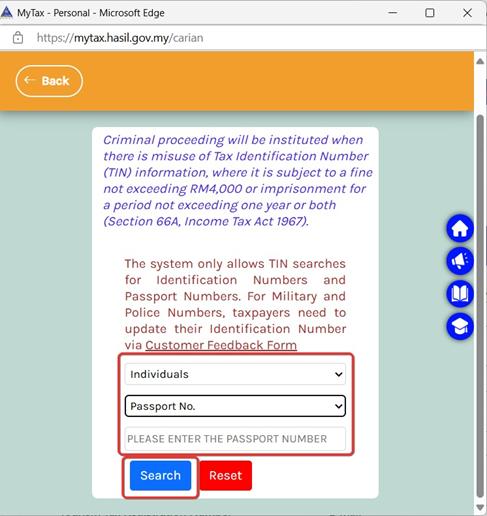
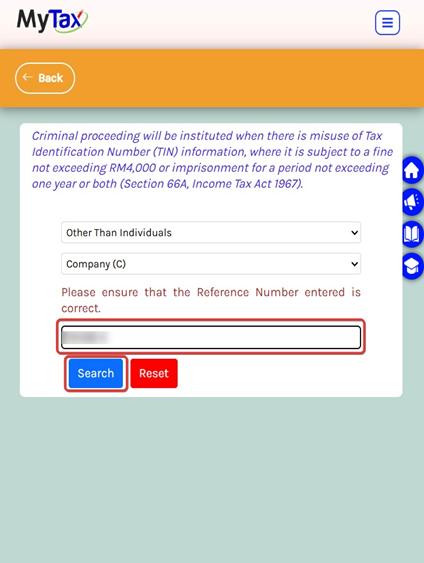
- For Other Than Individuals, users can select the taxpayer on listed in the category dropdown menu.
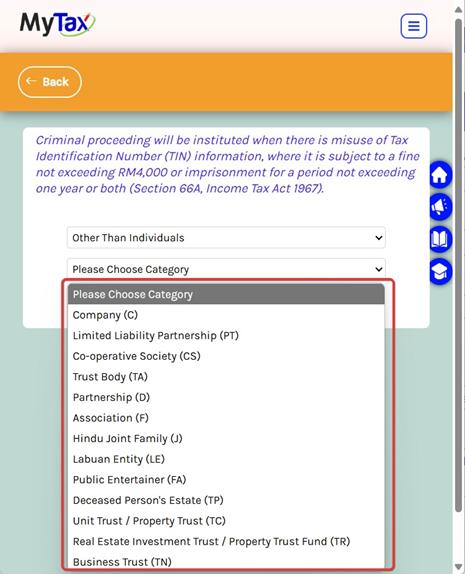
- After selecting the category of taxpayer, enter the reference/registration number based on category selected.
- Click on the Search button.
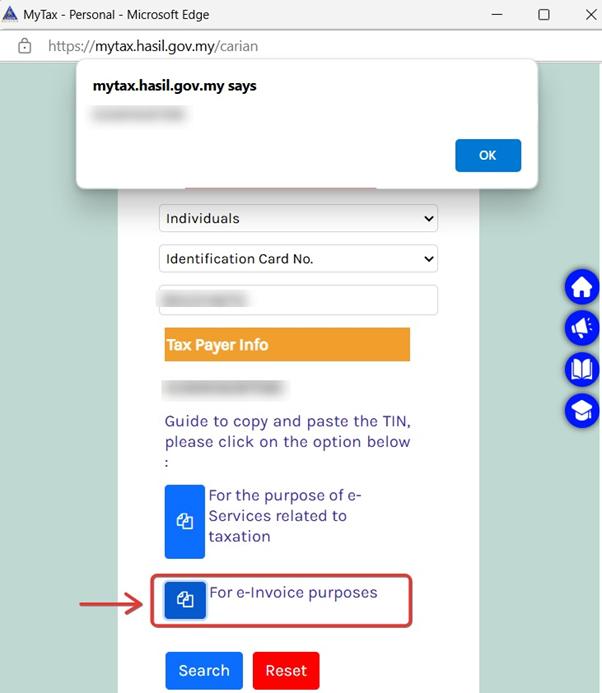
- After successfully submitting your information, the Taxpayer Identification Number (TIN) will be displayed directly on the Taxpayer Information page.
- Click on the icon beside For e-Invoice purposes to copy the Tax Identification Number (TIN) to clipboard.
- The option For the purpose of e-Services related to taxation is intended for copying the TIN to use in tax-related activities, such as filing returns or accessing online tax services.

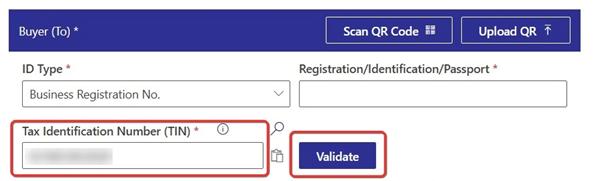
- After copying, paste it into the Tax Identification Number (TIN) box in MyInvois Portal and click on Validate.
- Upon successful validation, the remaining fields become enabled for manual entry.
- After copying, paste it into the Tax Identification Number (TIN) box in MyInvois Portal and click on Validate.
- Upon successful validation, the remaining fields become enabled for manual entry.
- Click Continue once all buyer and supplier details has been keyed in.
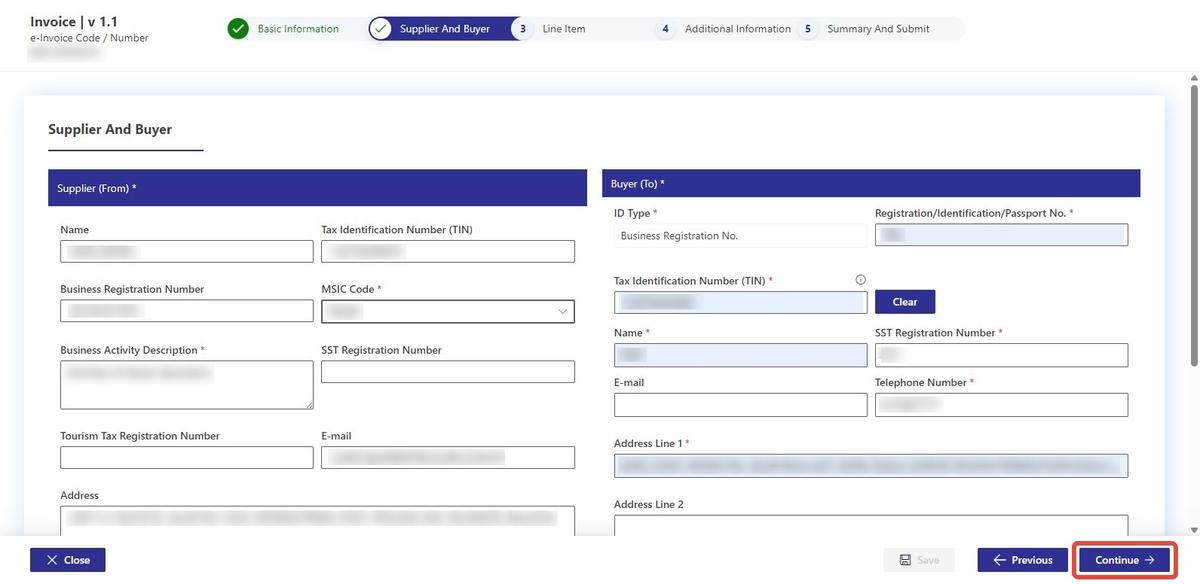
- Field descriptions, format and examples are as follows:
| Supplier (From) | |||
|---|---|---|---|
| No | Field Name | Field Description | Format and Example |
| 1. | MSIC Code * | 5-digit numeric code that represent the Supplier’s business nature and activity | Drop down list e.g. 01111 |
| 2. | Business Activity Description | Description of the Supplier’s business activity | Free Text e.g. Manufacture of snack products |
| Buyer (To) | |||
|---|---|---|---|
| No | Field Name | Field Description | Format and Example |
| 1. | ID Type * | NRIC, Passport number, Business registration number, army number | e.g. NRIC, BRN, PASSPORT, Army |
| 2. | Registration/Identification/Passport No. * | Registration/Identification/Passport No. | 201501041289 |
| 3. | Tax Identification Number (TIN) * | Buyer’s TIN assigned by IRBM | C2584563200 |
| 4. | Name * | Name of recipient of goods / services who is the issuer of the self-billed e-Invoice in a commercial transaction | Hebat Group |
| 5. | SST Registration Number | SST registration number of the Buyer *This is not applicable to Buyers that are not SST-registered. The input of special characters is not allowed, except for dash (-) and semicolon (;). A maximum of two SST registration numbers is allowed, separated by a semicolon. Supplier to input NA if buyer’s SST registration number is not available or not provided | A01-2345-67891012 |
| 6. | E-mail address of the Buyer (Following the email standards RFC 5321 and RFC 5322). | [email protected] | |
| 7. | Address Line 1 * | This is the main address line in an address structure that can be used to give the main address line information. A possible value for this field is NA and then all other address fields would not be provided except for the state field which would is mapped to the field. | Lot 66 |
| 8. | Address Line 2 | An additional address line in an address that can be used to give further details supplementing the main line. | Bangunan Merdeka |
| 9. | Address Line 3 | An additional address line in an address that can be used to give further details supplementing the main line. | Persiaran Jaya |
| 10. | City * | The common name of the city, town or village, where the Buyer's address is located. | Kuala Lumpur |
| 11. | Postcode * | The identifier for an addressable group of properties according to the relevant postal service. | 50480 |
| 12. | Country * | A country name. | Malaysia |
| 13. | State * | The state of a country. | 14 |
* is a mandatory field
- Users can use the recently added item features for MSIC Code and Business Activity Description under Supplier’s details section.
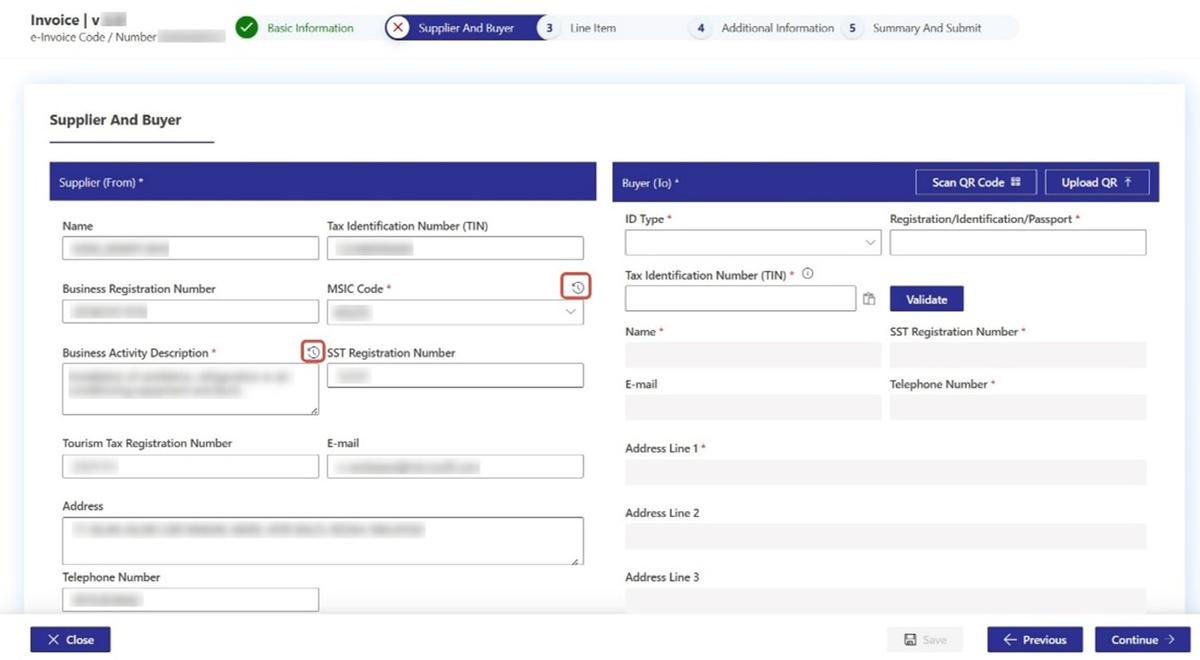
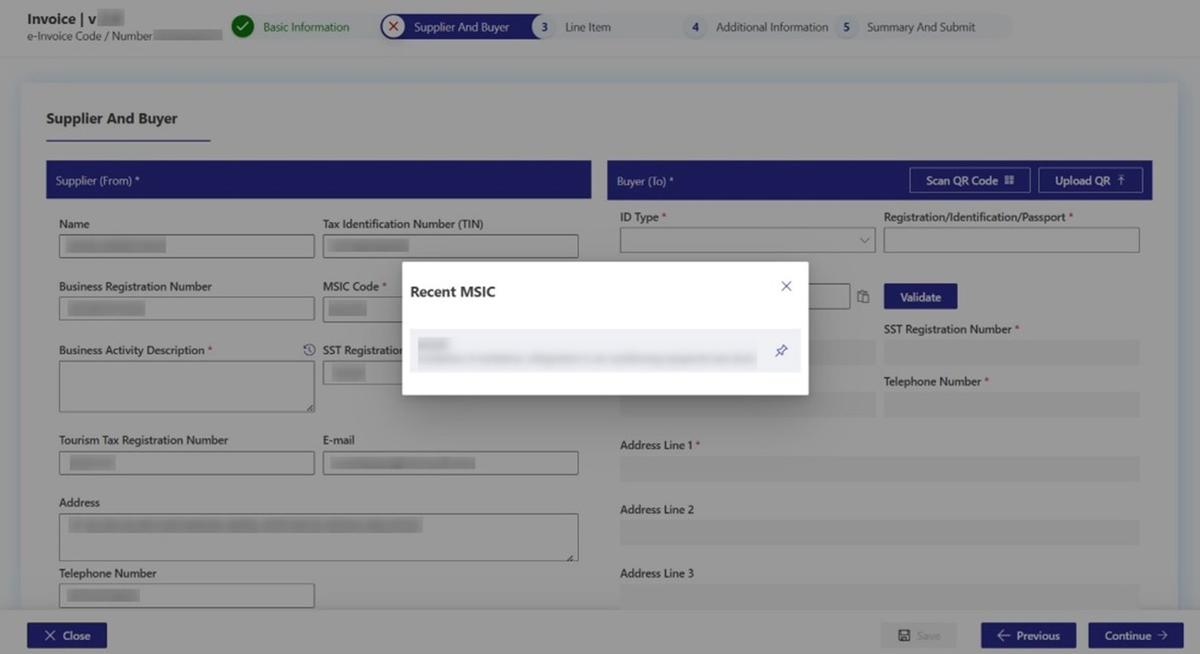
- Click on the recent icon above the MSIC Code field to show the list of recently used MSIC Code.
- The pin icon allows users to pin the recently used items.
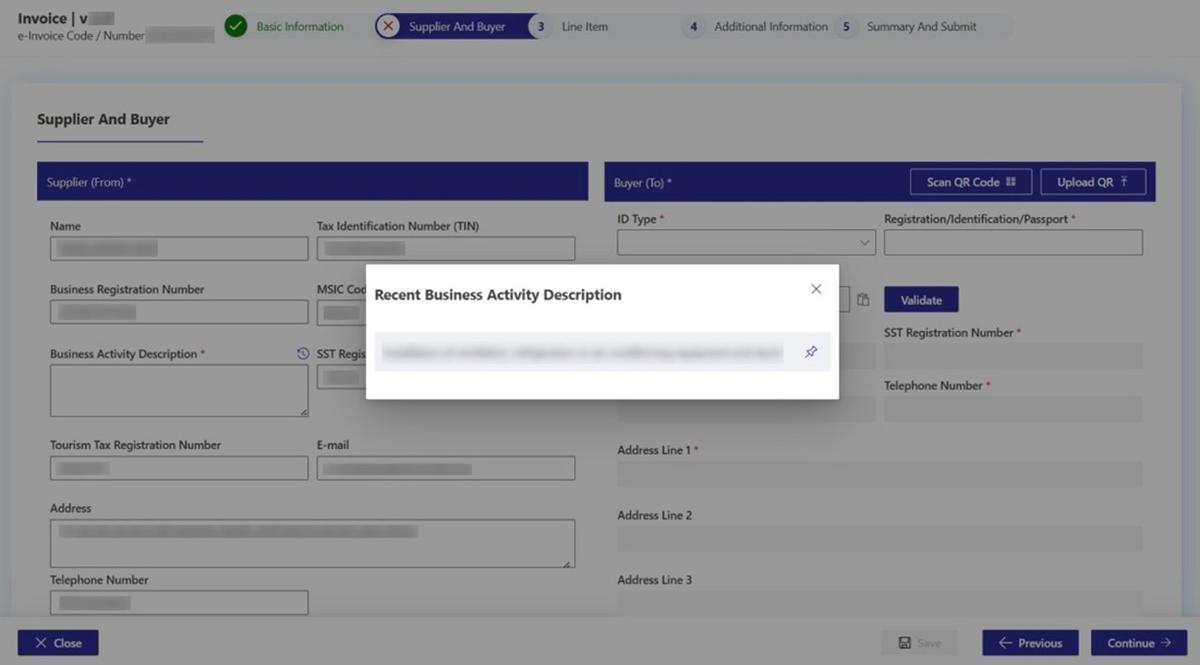
- Click on the recent icon above the Business Activity Description field to show the list of recently used Business Activity Description.
- The pin icon allows users to pin the recently used items.
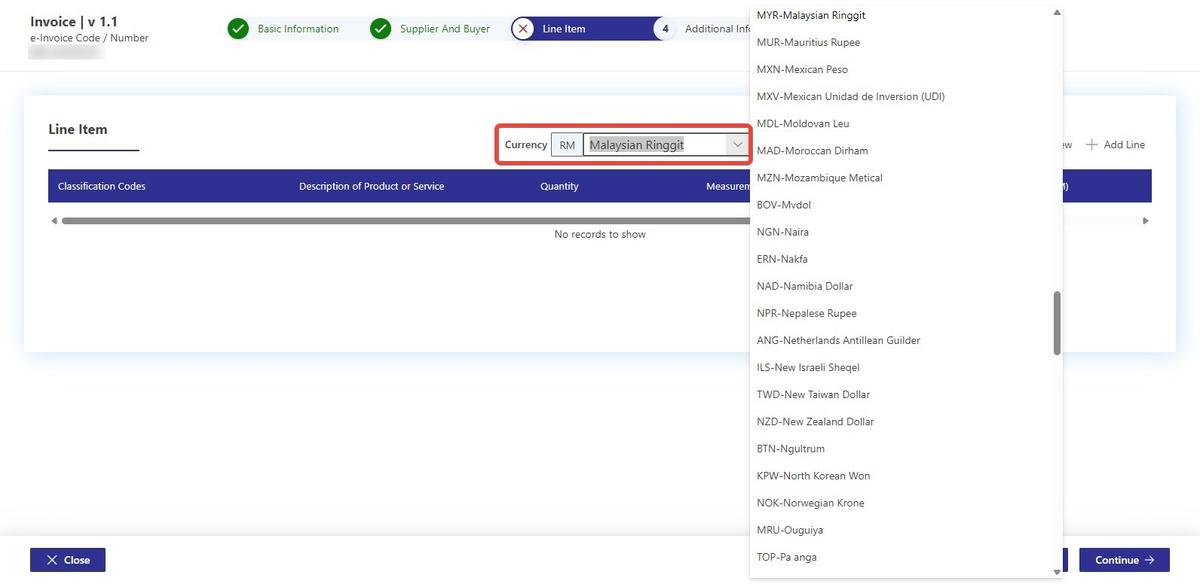
Step 6: Choose Currency
- Choose currency from the dropdown.
Step 7: Add Line Items
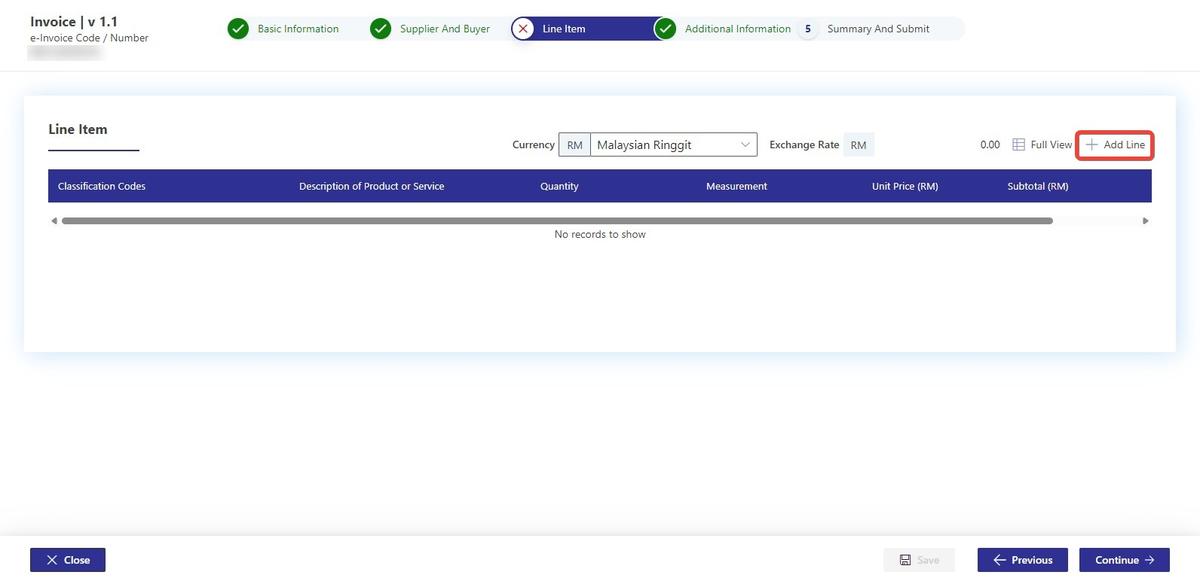
- To add a line item, click on Add Line to open a pop-up of which the details of the item can be input.
- The tool has the capability to perform some calculations automatically.
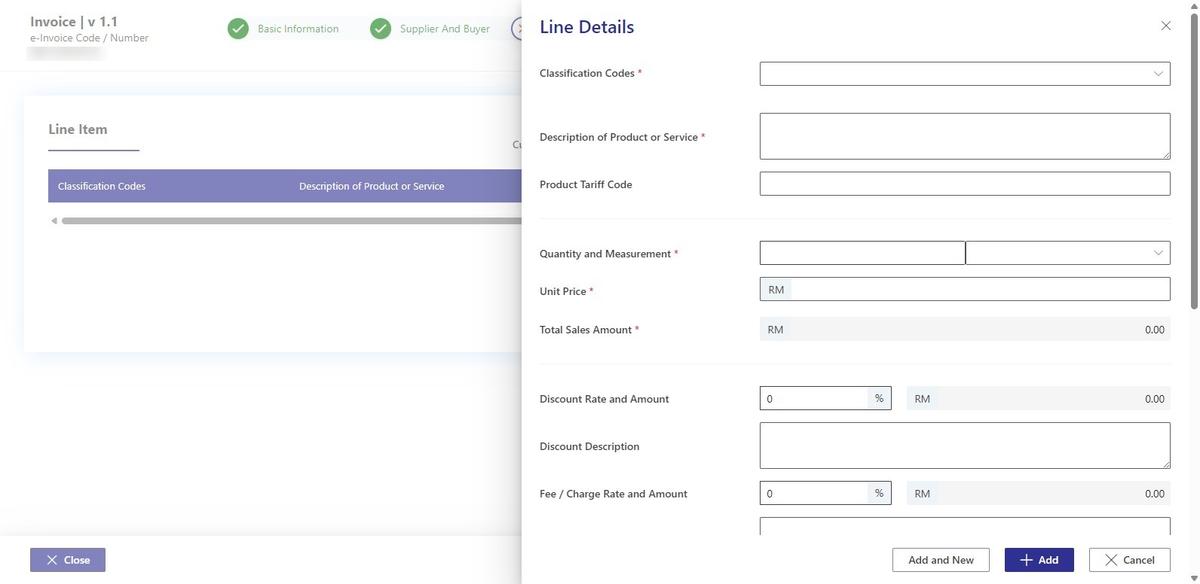
- The following popup will appear after clicking on Add Line.
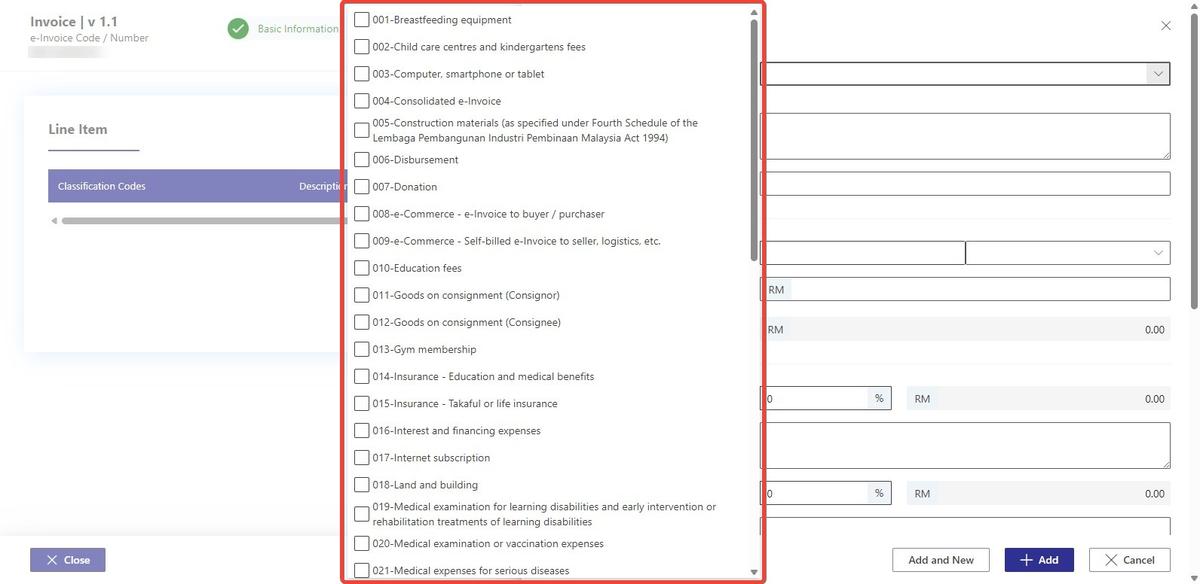
- Select the Classification Codes from the dropdown list.
- Fill in all the required fields. All explanation of the data fields is as follows:
| No | Field Name | Field Description | Format and Example |
|---|---|---|---|
| 1. | Classification Codes * | Category of products or services being billed because of a commercial transaction(e.g., general expenses, medical expenses, donations, self-billed e-Invoice, etc.) | Drop down list |
| 2. | Description of Product or Service * | Details of products or services being billed as a result of a commercial transaction | Laptop Peripherals |
| 3. | Product Tariff Code | Harmonised System code of the goods under the relevant Sales Tax Orders. | 9800.00.0010 |
| 4. | Quantity and Measurement * | Number of units of a particular product or service in a commercial transaction | 1.00 |
| 5. | Unit Price * | Price assigned to a single unit of a product or service | 17.00 |
| 6. | Total Sales Amount * | Total sales amount of the document in MYR | 10.10 |
| 7. | Discount Rate and Amount | Percentage of deduction from the original price of a product or service | 10 |
| 8. | Discount Description | Description of the discount applied | Free Text e.g. Manufacture of snack products |
| 9. | Fee/Charge Rate and Amount | Charge associated with the product or service (be it in the form of a percentage (%) or a prevailing specified rate) imposed before tax | 0.10 |
| 10. | Fee/Charge Description | Description of Charge Rate | Free Text e.g. Manufacture of snack products |
| 11. | Amount Exempted from Tax | Total amount of tax exempted for sales or service tax purposes on the invoice level | 1460.50 |
| 12. | Details of Tax Exemption | Reason for Tax Exemption | Free Text e.g. Manufacture of snack products |
| 13. | Total excluding Tax Amount | Sum of amount payable (inclusive of applicable discounts and charges), excluding any applicable taxes (e.g., sales tax, service tax) | 1436.50 |
| 14. | Country of Origin | Description of origin of goods | GBR |
* is a mandatory field
- Fill in required field in Taxes, the description is as below:
| No | Field Name | Field Description | Format and Example |
|---|---|---|---|
| 1. | Amount Exempted From Tax | Total amount of tax exempted for sales tax or service tax purposes on the invoice level. | 1460.50 |
| 2. | Tax Exemption Reason | Reason for Tax Exemption | Free Text e.g. Manufacture of snack products |
- Click on Add Tax Type.
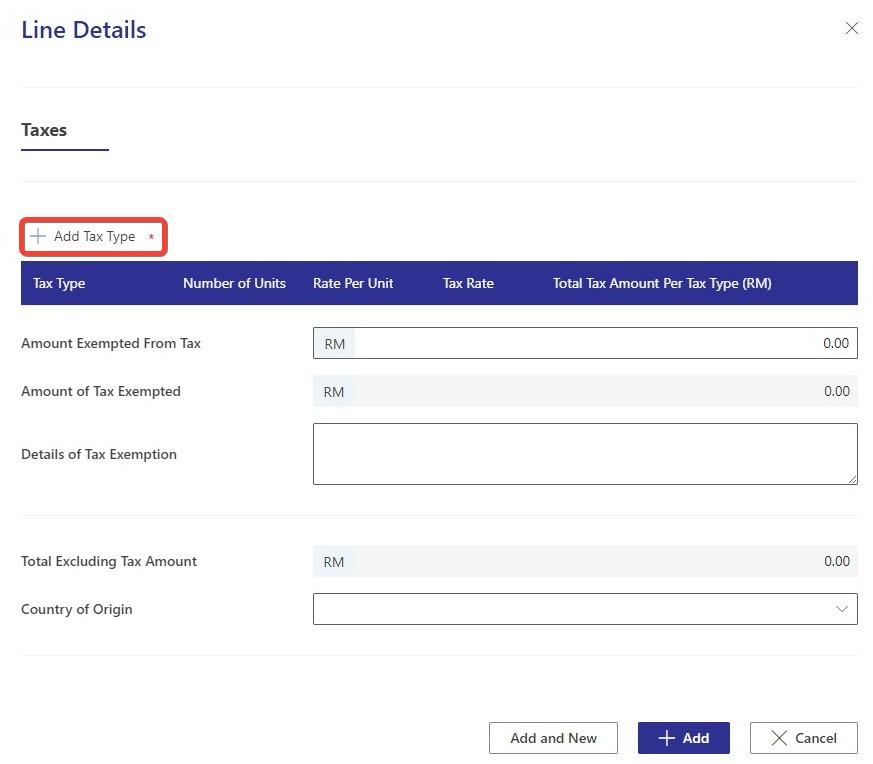
- The descriptions are as follows:
| No | Field Name | Field Description | Format and Example |
|---|---|---|---|
| 1. | Type | Type of taxes that will be applicable | Dropdown list e.g., sales tax, service tax, tourism tax, etc. |
| 2. | Number of Units | Number of units | 1.00 |
| 3. | Rate per Unit | Amount per Unit | 10.00 |
| 4. | Rate | Tax Rate | 1.0 |
| 5. | Amount (MYR) | Total Tax amount in MYR | 10.00 |
-
Select Tax Type from the dropdown. There are two scenarios:
-
Type in Number of Units and Rate per Unit. Rate text box will grey out.
-
Type in Rate. Number of Units and Rate per Unit will grey out.
-
If you choose Not Applicable as Type, all the boxes will grey out.
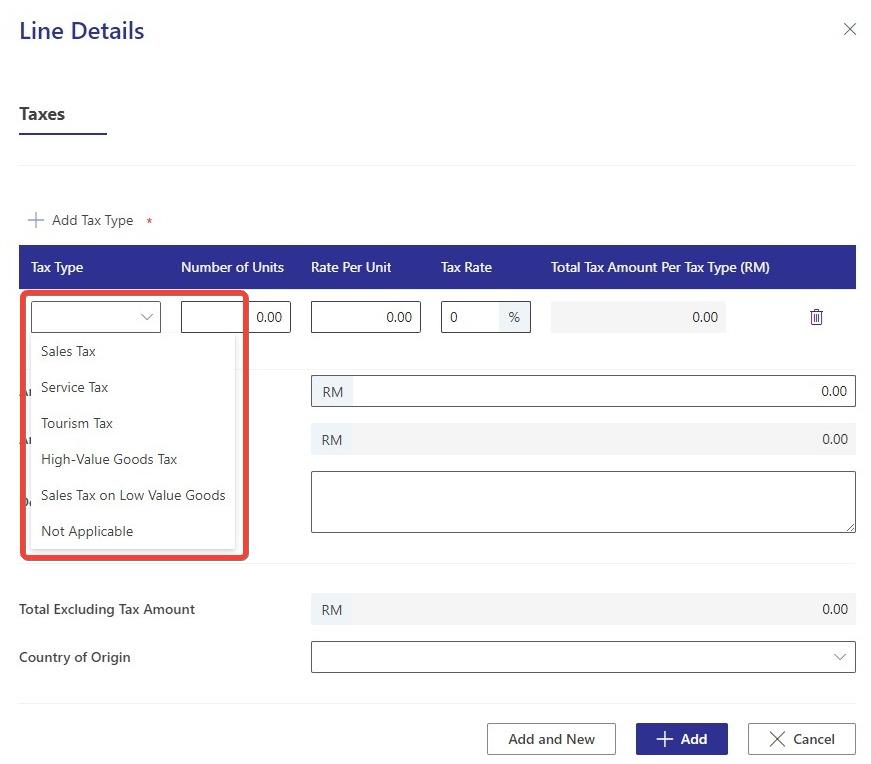
- After filling in all the details, click on the Add button
- To add another line item, click on the Add and New.
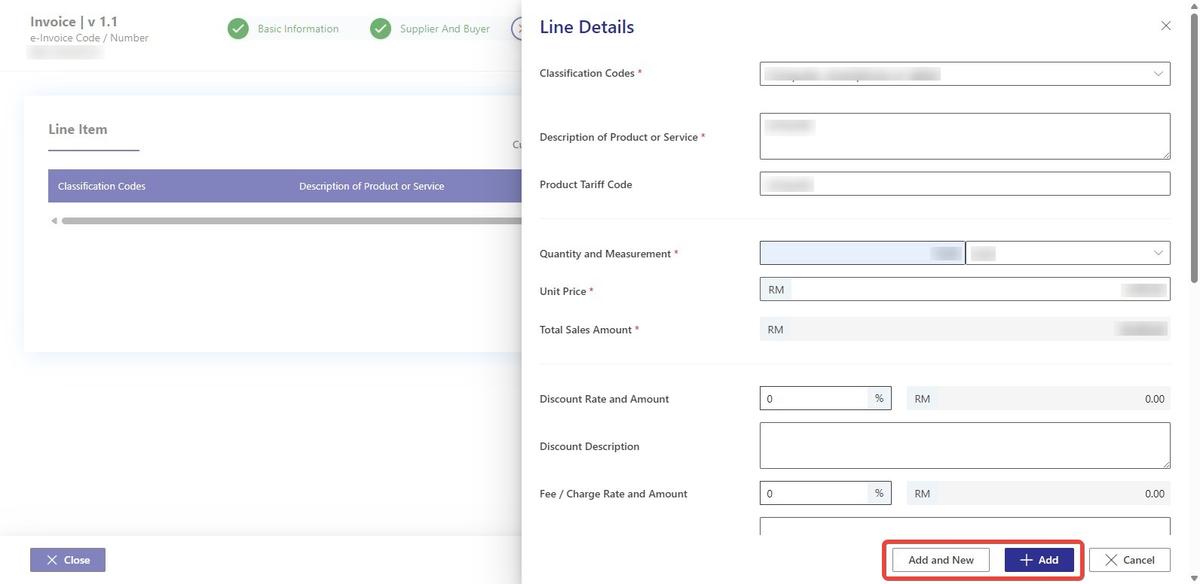
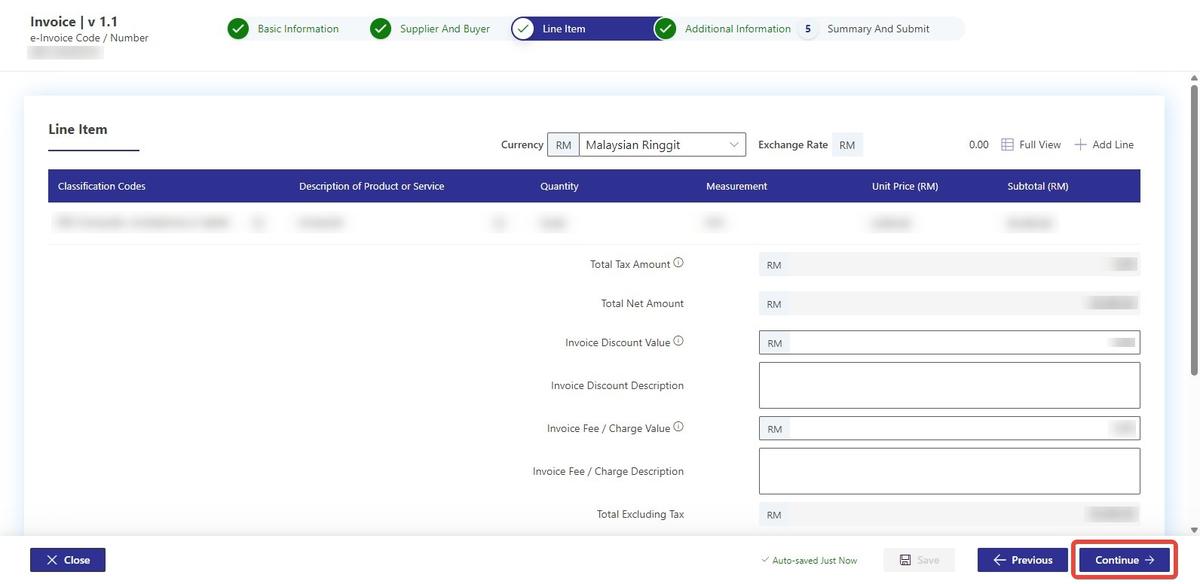
- Click on Continue to go to next tab once all the details have been input.
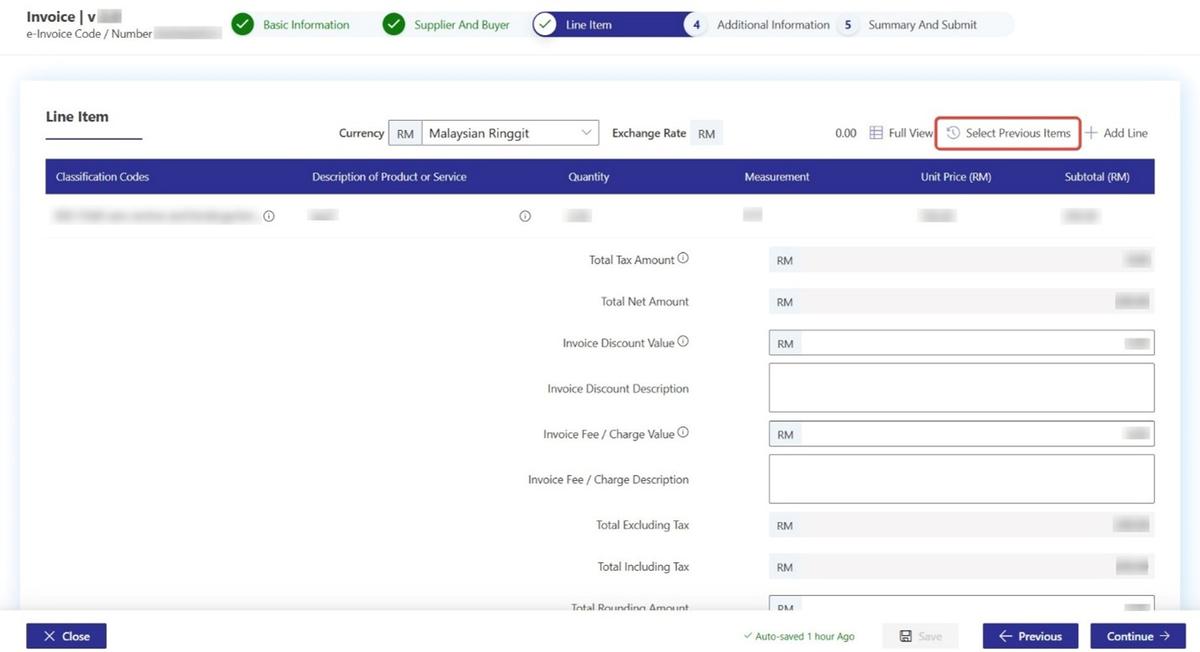
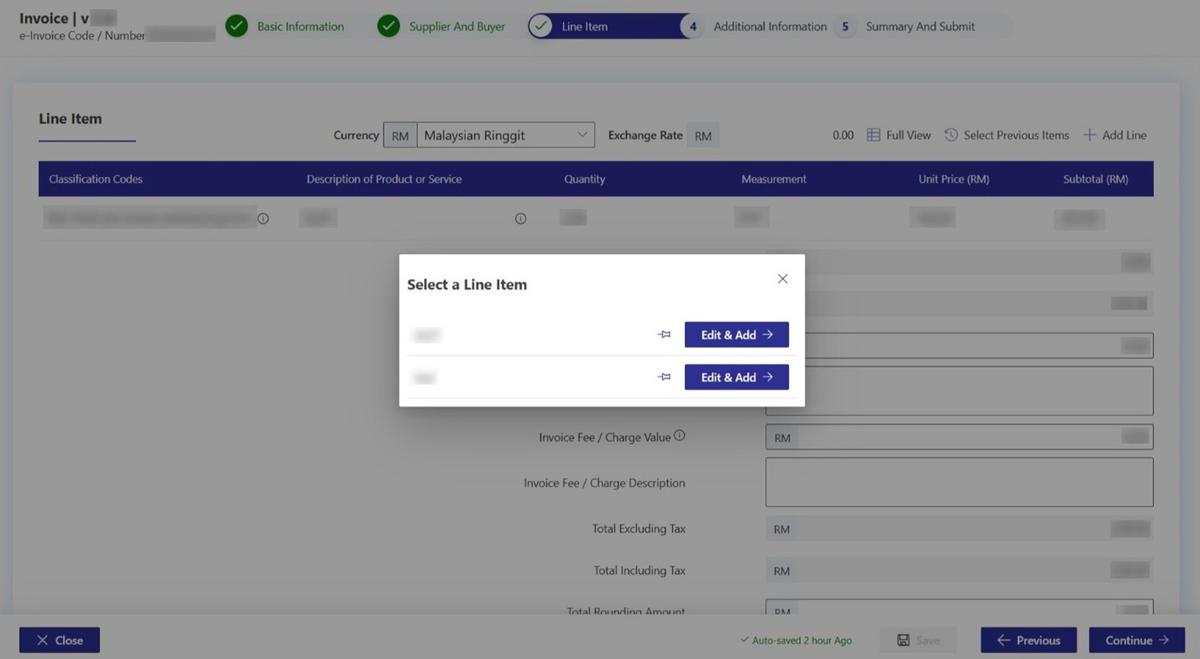
- Click on the Select Previous Items icon to access and utilize recently added items for the Line Items section.
- Click on the Edit & Add allows users to modify the details under the Line Details section.
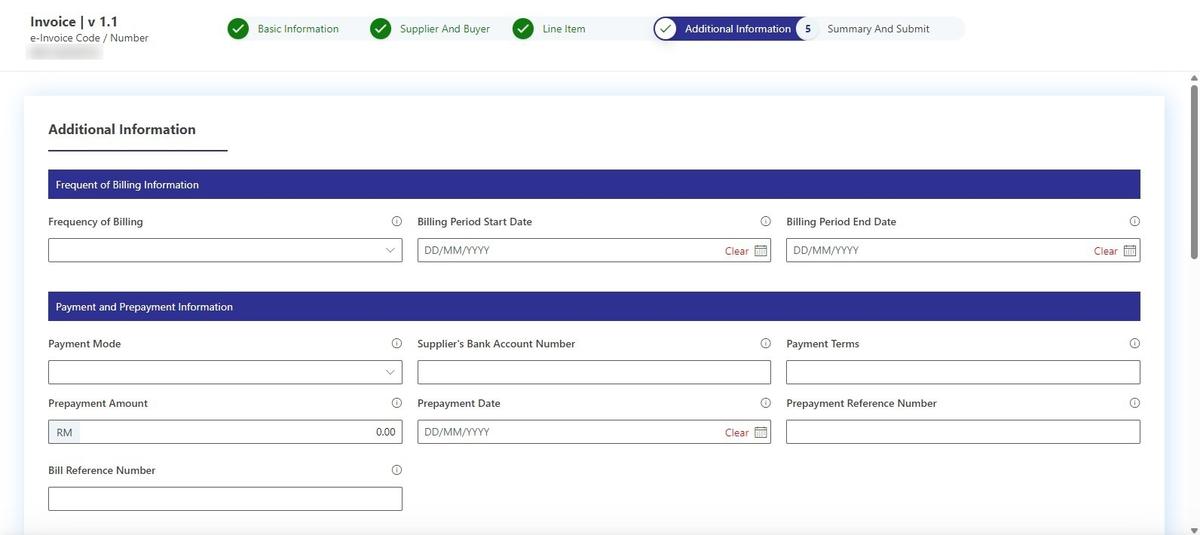
Step 8: Add Additional Information
- Frequent billing information is as follows:
| No | Field Name | Field Description | Format and Example |
|---|---|---|---|
| 1. | Frequency of billing | Frequency of the invoice | e.g., Daily, Weekly, Biweekly, Monthly, Bimonthly, Quarterly, Half-yearly, Yearly, Others / Not Applicable |
| 2. | Billing Period Start Date | Start date of the transaction interval | 2017-11-26 |
| 3. | Billing Period End Date | End date of the transaction interval | 2017-11-30 |
- Payment and Pre-payment information is as follows:
| No | Field Name | Field Description | Format and Example |
|---|---|---|---|
| 1. | Payment mode | Payment Mode refers to the chosen mechanism through which funds are transferred from buyer to supplier. | e.g., cash, cheque, bank transfer, credit card, debit card, e-Wallet/ Digital Wallet, etc. |
| 2. | Supplier's bank account number | The Supplier’s bank account number to facilitate payment by Buyer | 1234567890123 |
| 3. | Payment terms | An agreed-upon payment terms and conditions e.g., timing and method of payment | e.g. Payment method is Cash. |
| 4. | Pre-Payment Amount | Monetary value that is prepaid by the Buyer in order to fulfill the financial obligation. | 1.00 |
| 5. | Pre-payment date | Date of prepayment received | 2000-01-01 |
| 6. | Pre-payment reference number | Unique identifier assigned to trace payment | E12345678912 |
| 7. | Billing reference number | Supplier’s internal billing reference number to facilitate payment from Buyer | E12345678912 |
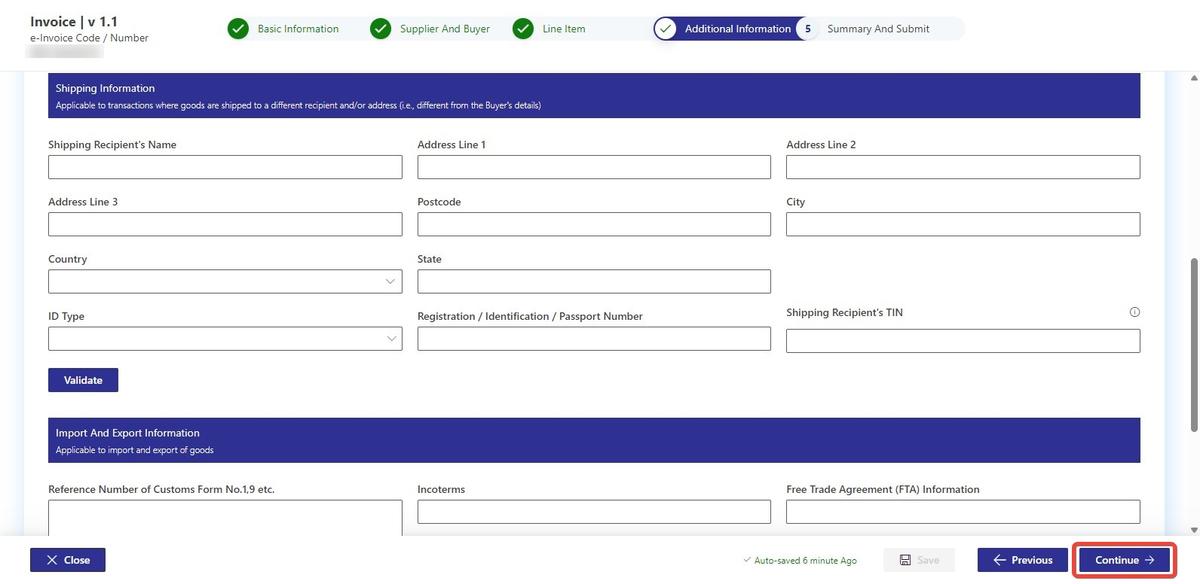
- Shipping Information is as follows:
| No | Field Name | Field Description | Format and Example |
|---|---|---|---|
| 1. | Shipping Recipient's Name | Name of shipping recipient of the products included in the e-Invoice in a commercial transaction | Greenz Sdn. Bhd. |
| 2. | Address Line | Address (registered, business, residential, etc.) of business or individual who will be the shipping recipient of the products included in the e-Invoice in a commercial transaction | Bangunan Merdeka |
| 3. | Postcode | The identifier for an addressable group of properties according to the relevant postal service | 50480 |
| 4. | City | The common name of the city, town or village, where the Supplier, Buyer and Shipping Recipient address is located. | Kuala Lumpur |
| 5. | Country | A code that identifies the country | Malaysia |
| 6. | State | The state of a country. | 14 |
| 7. | ID Type | NRIC, Passport number, Business registration number, army number | e.g. NRIC, BRN, PASSPORT, Army |
| 8. | Registration/Identification/Passport No. | Registration/Identification/Passport No. | 201501041289 |
| 9. | Shipping recipient's TIN | TIN of the shipping recipient assigned by IRBM | C2584563200 |
- Import & Export Information description is as follows:
| No | Field Name | Field Description | Format and Example |
|---|---|---|---|
| 1. | Reference Number of Customs Form No.1,9 etc. | Unique identifier assigned on the Declaration of Goods Imported.The input of special characters is not allowed. | E12345678912 |
| 2. | Incoterms | A set of international trade rules that define the responsibilities of buyers and suppliers.The input of special characters is not allowed. | CIF |
| 3. | Free Trade Agreement (FTA)Information | Details, provisions and requirements outlined within a trade agreement between two or more countries. | ASEAN-Australia-New Zealand FTA (AANZFTA) |
| 4. | Authorization Number for Certified Exporter (e.g., ATIGA number) | A unique identification number or code used for validation of a certified exporter by the relevant authority. The input of special characters is not allowed, except for dash (-). | CPT-CCN-W-211111-KL-000002 |
| 5. | Reference Number of Custom Form No.2 | Unique identifier assigned on the Declaration of Goods Exported.The input of special characters is not allowed. | E12345678912 |
| 6. | Details of other charges | Details of additional charges, along with the amount payable. | INV12345true100.00Service charge |
| 7. | Details of other charges description | Description of Details of other charges | Free Text e.g. Manufacture of snack products |
- Click Continue.
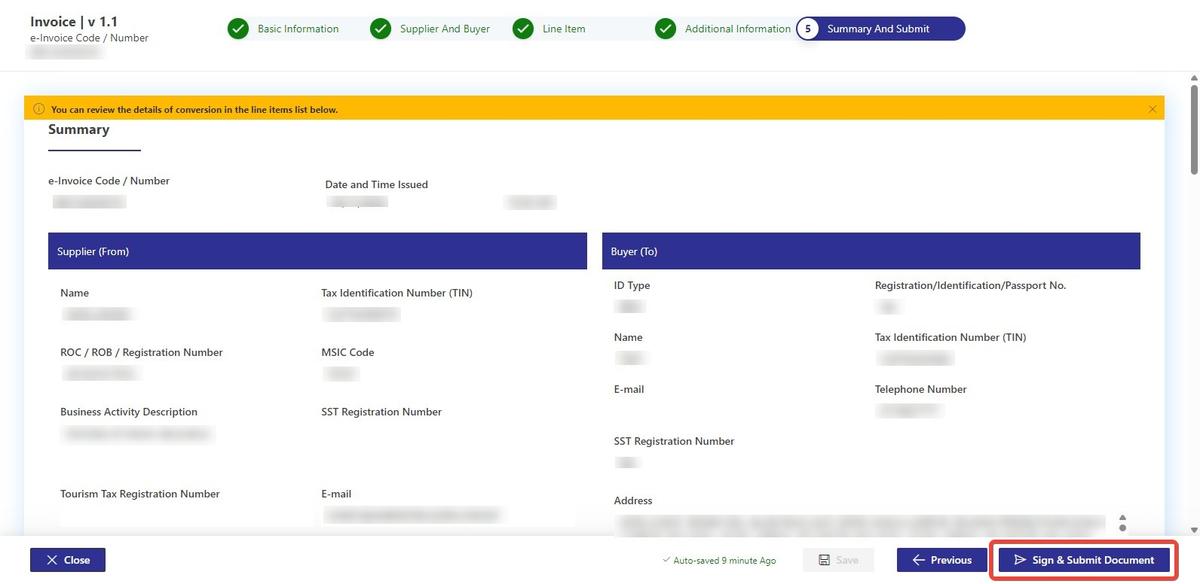
Step 9: Review Details
- Review the document details on the summary page. Once confirmed, click the Sign and Submit Document to proceed to the signing page.
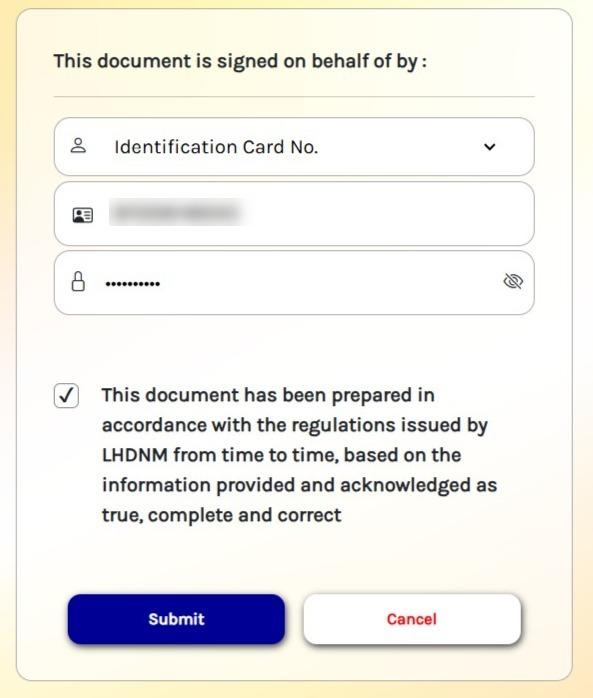
Step 10: Document Signing
- To sign the document, Choose ID Type.
- Enter User ID in the designated field and type in your Password (Avoid using a browser that auto-fills the password).
- Acknowledge the statement by checking the box.
- Click on Submit to finalise the signing process.
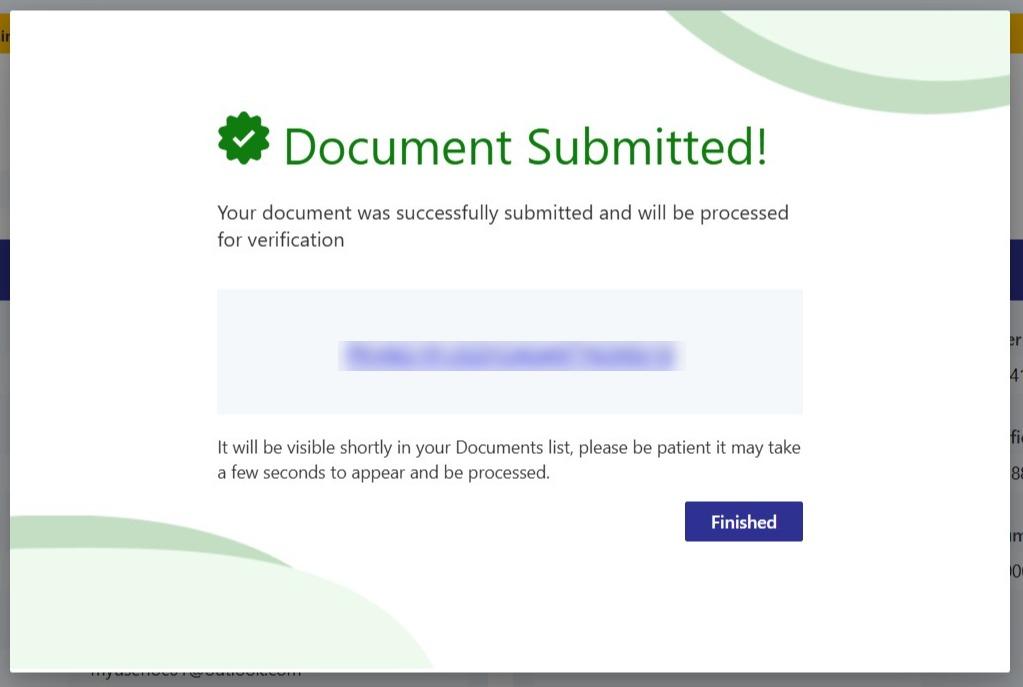
- After digital validation, Document will be created with the pop-up below.